
Edit Your Generated CV and Cover Letter, Section by Section
Your documents, but only the parts you want
You've generated a CV and a cover letter that already match the job description. Now you read it back and think: "that one bullet works, but that sentence about my last role needs to be tighter." In the past, fixing a single line meant opening a wall of HTML code and hoping you didn't break the layout.
That's gone. myKaria now lets you edit a generated document section by section, right in the preview.
Click, edit, save
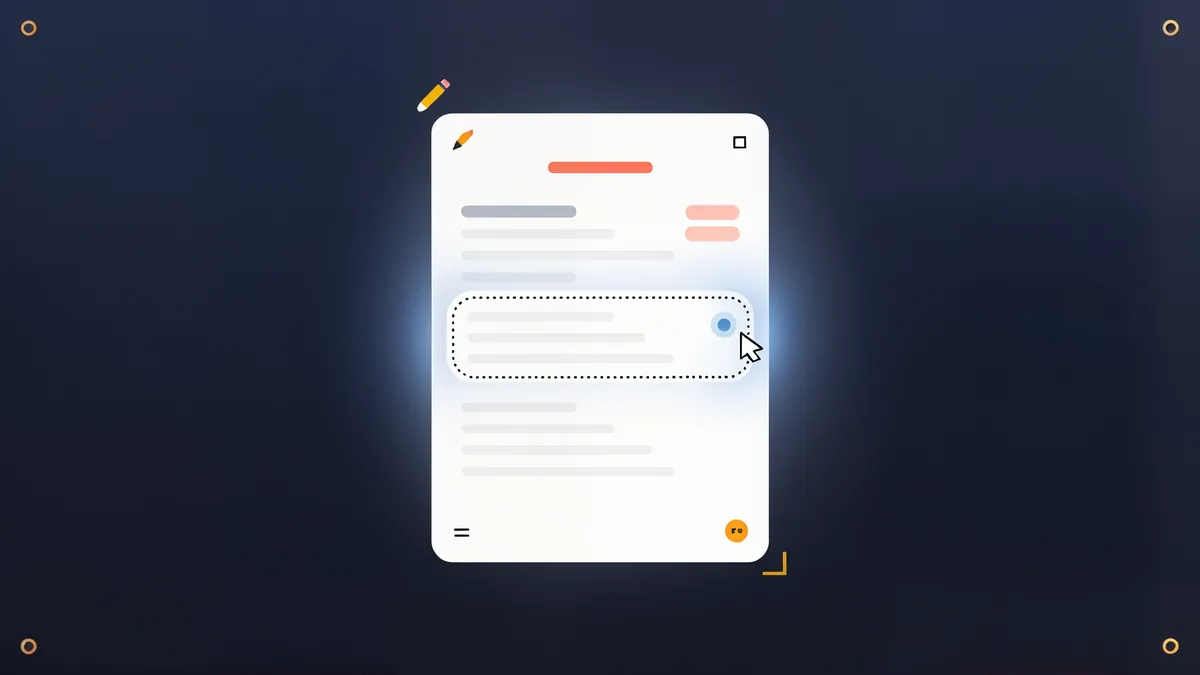
When you open a generated CV or cover letter before finalizing, you'll see a list of the document's sections — work experience, skills, education, your summary, and so on. Click Edit on any section and it becomes editable right where it sits in the layout. Change the wording, tighten a bullet, fix a date. When you're happy, hit Save and your changes are stitched back into the document exactly.
You don't touch a single line of code. The formatting, the template's design, and the layout all stay exactly as they were — only the content you edited changes.
A couple of things are intentionally locked so nothing breaks: images inside a section stay fixed (you can't accidentally drag a photo out of shape), and if a section can't be safely edited on its own, myKaria tells you instead of letting you mess up the layout.
Prefer full control? Raw HTML is still there
Some people like total control. If that's you, the raw HTML editor hasn't gone anywhere — it's the second editing surface, for when you want to touch markup directly. Most people will never need it; the section editor is the default.
Why this matters
Editing per section means the document you send is the document you intended. No more "it's close enough." You can refine the exact sentences a recruiter will read, while the professional layout stays intact. And since the same engine that generates the document also accepts your edits, the PDF you download matches what you approved on screen.
Try it
The next time you generate a CV or cover letter, open the preview and look for the Edit button on each section. If your plan shows an upgrade notice instead of the editor, that notice tells you exactly which plans include editing — so you always know where you stand.
Editing a document you're proud of should take minutes, not a debugging session. Now it does.